Help Centre / Account & Billing / Turn on two-factor security
Turn on two-factor security
Add a one-time code from an authenticator app on top of your password.
Two-factor authentication adds a second step when you sign in: a six-digit code from an authenticator app on your phone, on top of your password. It makes your account much harder to break into.
- Go to Profile → Security.
- Under Two-Factor Authentication, tap Enable 2FA.
- Scan the QR code with an authenticator app such as Google Authenticator, Authy or 1Password.
- Enter the six-digit code the app shows, then tap Verify & Enable.
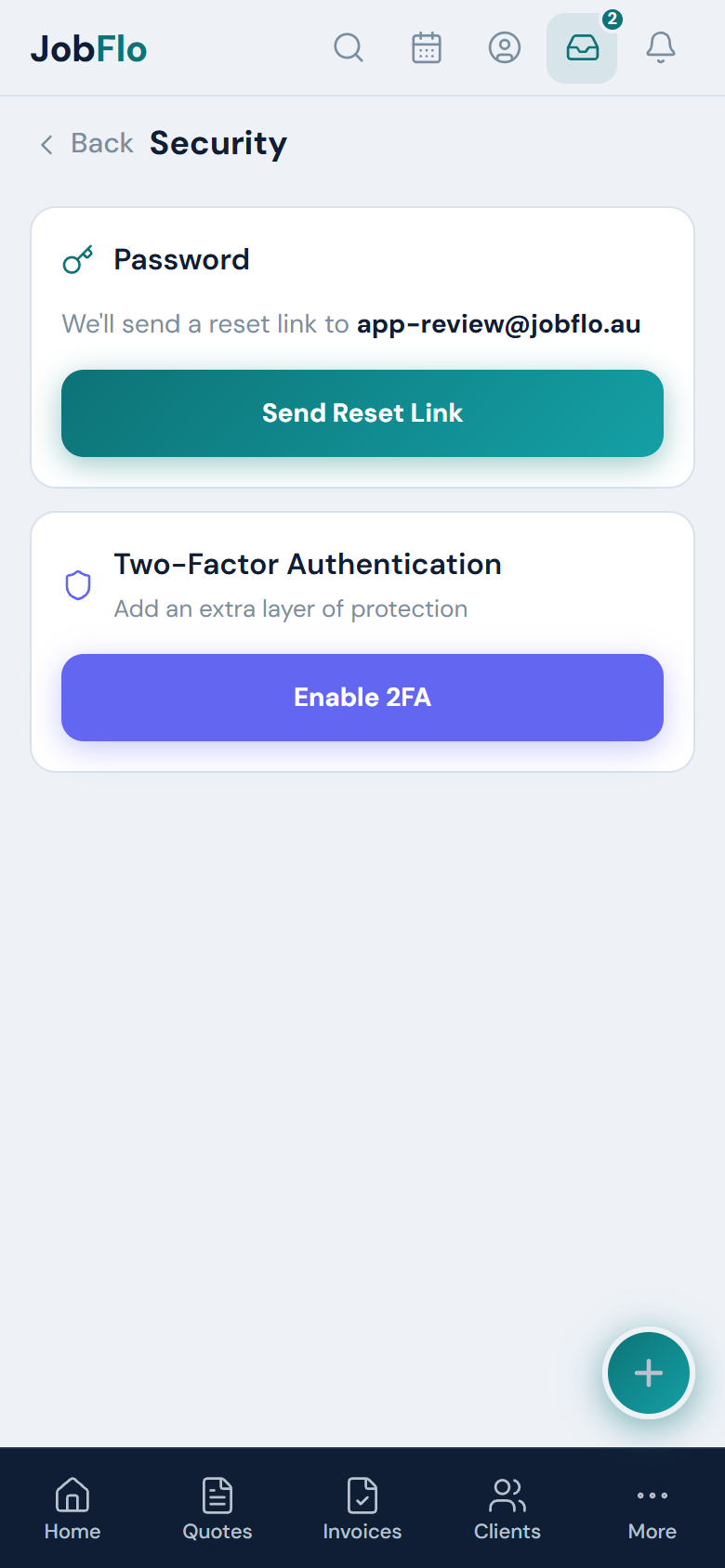
From then on, you enter a fresh code from your app each time you sign in. You can turn it off again from the same screen with Disable 2FA.
Keep your authenticator app on a device you will still have access to. If you replace your phone, set 2FA up again on the new one.
Was this article helpful?
Related articles
Still stuck? Contact JobFlo