Help Centre / Clients / Importing clients from a CSV file
Importing clients from a CSV file
Bring your whole customer list across in one go from a spreadsheet.
If you already keep clients in a spreadsheet or another app, you can export them to a CSV file and import the lot in a few taps.
- Open the Clients tab and tap Import.
- Tap Download Template to get a correctly formatted CSV. The columns are: first_name, last_name, company, email, phone, address_line1, address_line2, state and postcode, plus notes.
- Fill in the template (or match your own spreadsheet to those columns), then tap Click to upload CSV and choose your file.
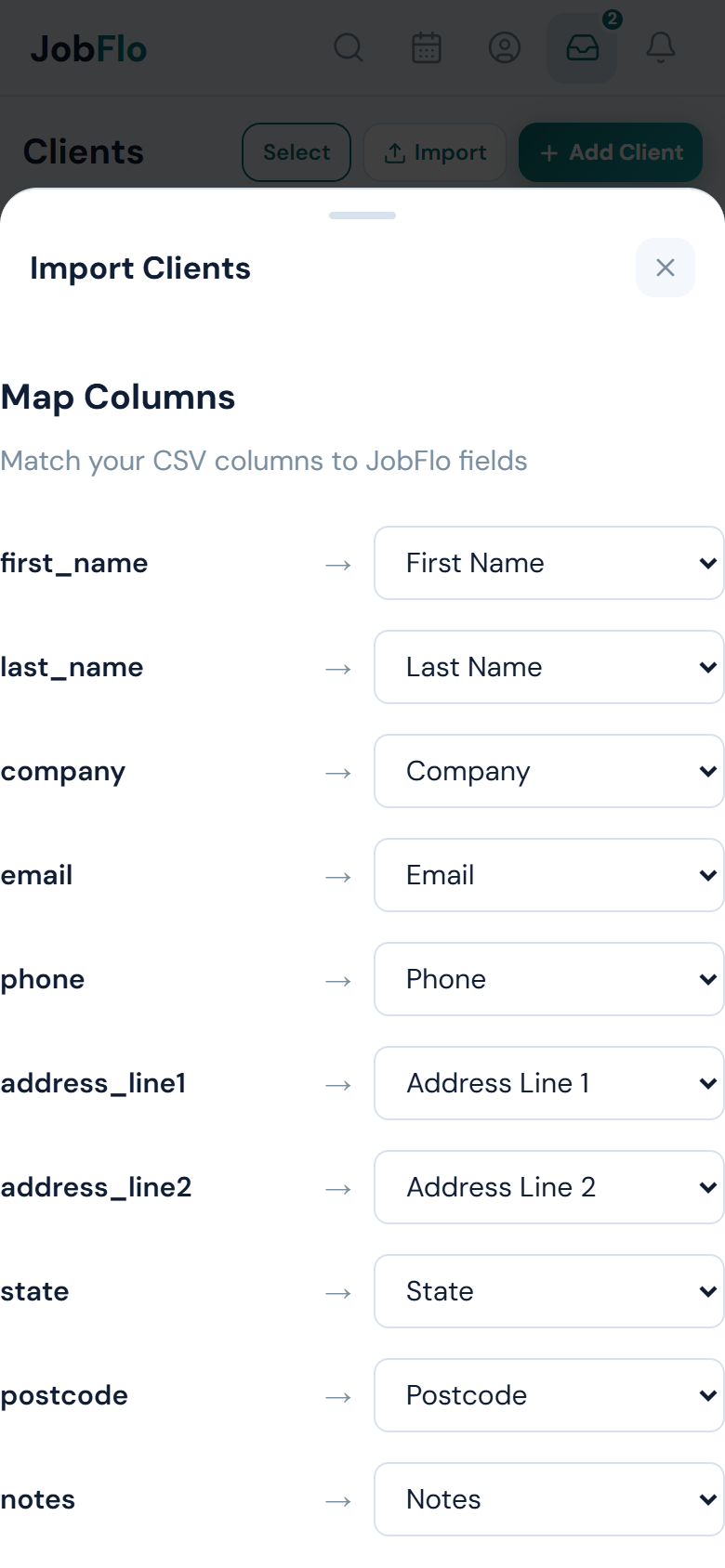
- On the Map Columns step, check each of your columns points to the right JobFlo field. JobFlo auto-matches common headings, but you can change any of them.
- Make sure you have mapped either First Name and Last Name, or Company — every row needs at least one.
- Tap Next: Preview to check the first few rows, then tap Import.
- Review the result. Any rows that could not be imported are counted as skipped.
If some rows are skipped, tap Download Error Log to get a CSV listing each skipped row and why, so you can fix just those and import again.
On the app, the template and error log open through your device share sheet, so you can save them to Files or send them wherever you need.
Was this article helpful?
Still stuck? Contact JobFlo