Help Centre / Appointments & Scheduling / Syncing your schedule to Apple, Google or Outlook Calendar
Syncing your schedule to Apple, Google or Outlook Calendar
Subscribe to a live feed of your JobFlo appointments from your usual calendar app.
JobFlo gives you a private calendar link you can subscribe to in Apple Calendar, Google Calendar or Outlook. Your appointments then show up alongside everything else, and because you are subscribing to a live feed rather than doing a one-time import, it keeps itself up to date.
- Go to More, then Settings, then Calendar Sync (this lives in the business owner settings).
- Under Business Calendar Feed (every appointment) or Personal Calendar Feed (just the ones assigned to you), tap Copy to copy the URL.
- Open the Setup Instructions and pick the tab for Google Calendar, Apple Calendar or Outlook.
- Follow the steps for your app — in each one you paste the URL into a "Subscribe from URL" or "Subscribe from web" option, not a file import.
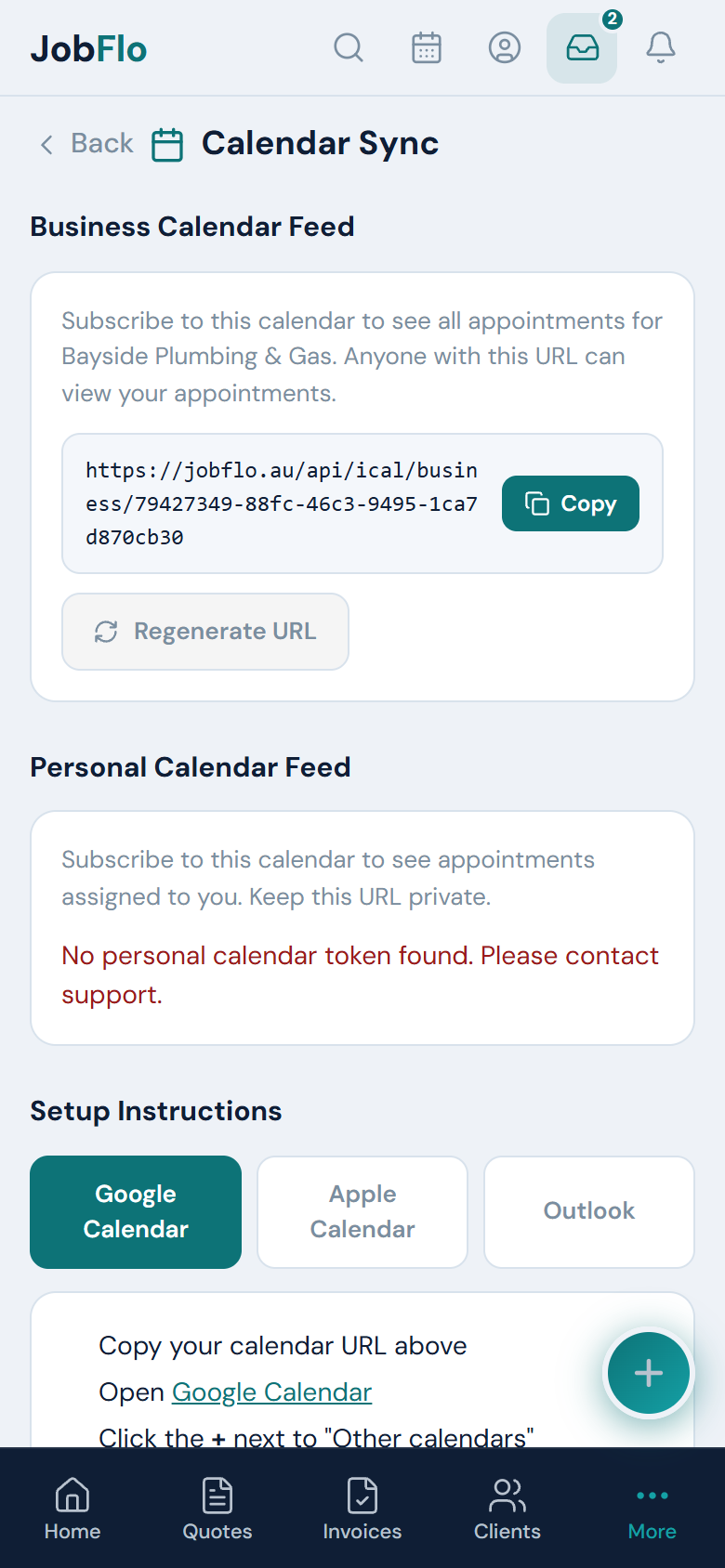
Anyone with this URL can see your appointments — treat it like a password. Do not post it publicly. If it ever leaks, tap Regenerate URL to issue a new one; the old link stops working straight away.
Subscribed calendars refresh on a schedule set by your calendar app, and JobFlo updates the feed about every hour, so new and changed appointments appear on their own — there is nothing to re-import.
Was this article helpful?
Related articles
Still stuck? Contact JobFlo