Help Centre / Expenses & Time / Tracking time on a job
Tracking time on a job
Clock your hours with a live timer, or type them in later.
Tracking time shows how long jobs actually take and, for billable work, what those hours are worth — useful whether you bill by the hour or just want to know your real costs.
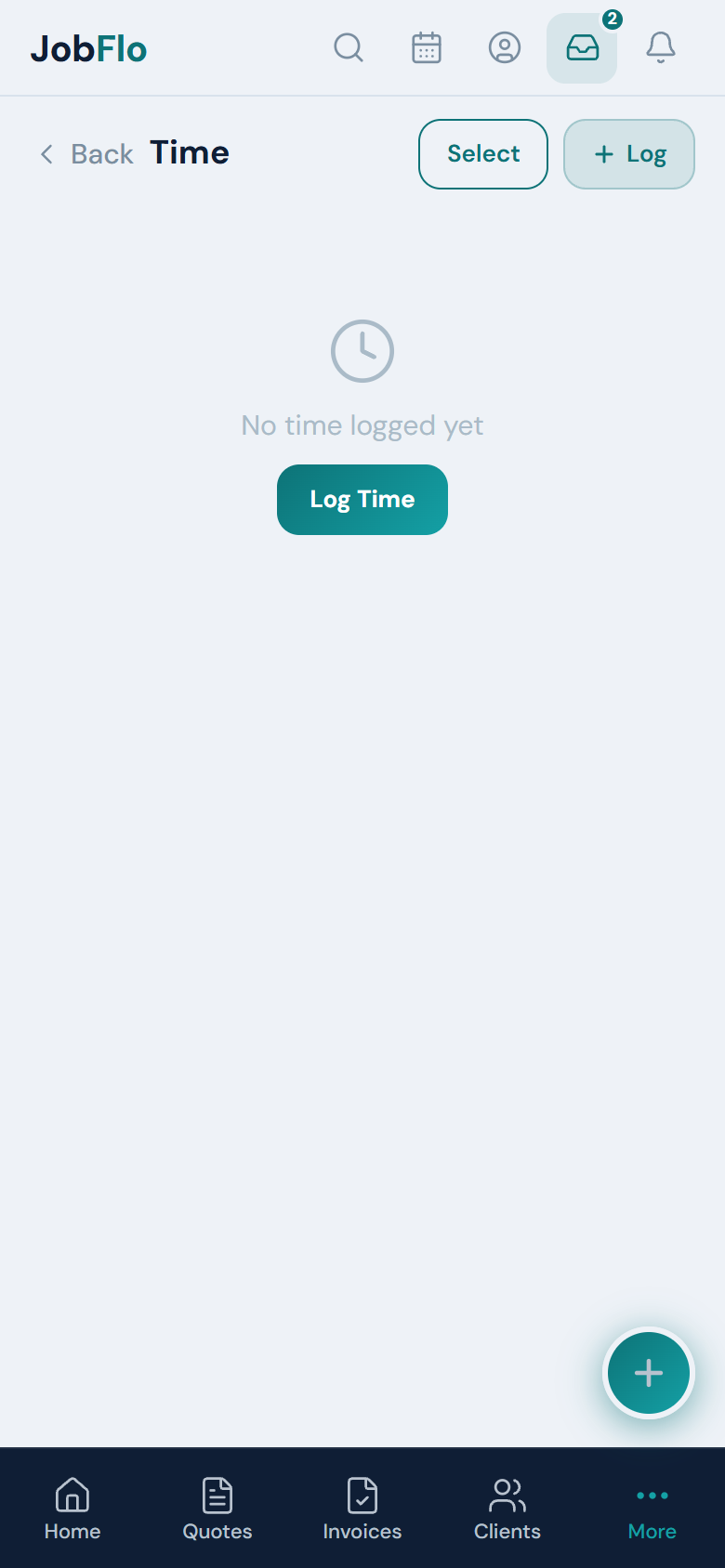
- Go to More, then Time, and tap Log.
- Choose Start Timer to time yourself live, or Manual Entry to type in hours you have already worked.
- For the timer, tap Start, then Stop when you are done (you can Resume). For manual entry, enter the Hours (for example 2.5) and the Date.
- Optionally pick a Client and link an Invoice or Quote.
- Add a Description of what you worked on.
- Set Billable to Yes or No. If it is billable, check the Hourly Rate.
- Tap Save Time Entry.
The Hourly Rate defaults to your business rate from settings — change it here for a one-off. Billable entries with a rate show what you earned.
Was this article helpful?
Related articles
Still stuck? Contact JobFlo