Help Centre / Team / Inviting a team member
Inviting a team member
Send an email invite to a staff member and set exactly what they can see and do.
Team lets you bring staff into your JobFlo account so they can raise quotes and invoices, manage clients, and get through the day’s work — all under your business, with the access you decide.
Team members are a Business-plan feature. On Starter and Pro the Team screen is not available. The Business plan includes up to 5 people in total, which counts you (the owner) plus up to four staff.
- Open More → Team (or Profile → Team). Only the account owner can open this screen.
- Tap Invite Team Member.
- Enter their name and email. A phone number is optional.
- Set their permissions using the checkboxes — see Roles and permissions for what each one does.
- Tap Send Invite. They receive an email invite and show as Pending until they accept and set up their login.
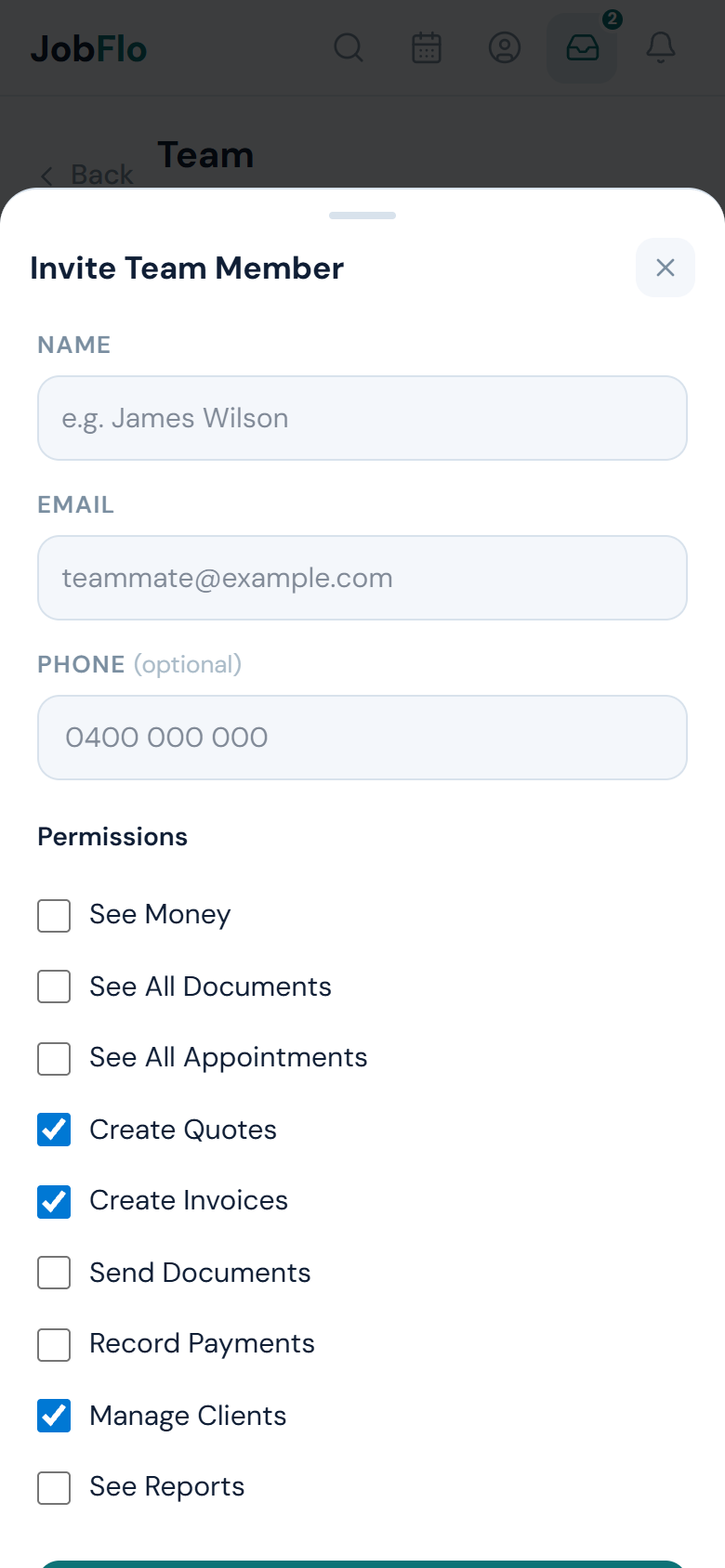
A member sits as Pending until they accept the emailed invite. Once accepted, their status changes to Active and they count towards your plan’s user limit.
If someone did not receive their invite, ask them to check spam. You can also remove and re-invite them from the Team screen to send a fresh invite.
Was this article helpful?
Related articles
Still stuck? Contact JobFlo