Help Centre / Team / Roles and permissions
Roles and permissions
How the owner and staff roles differ, and what each permission unlocks for a staff member.
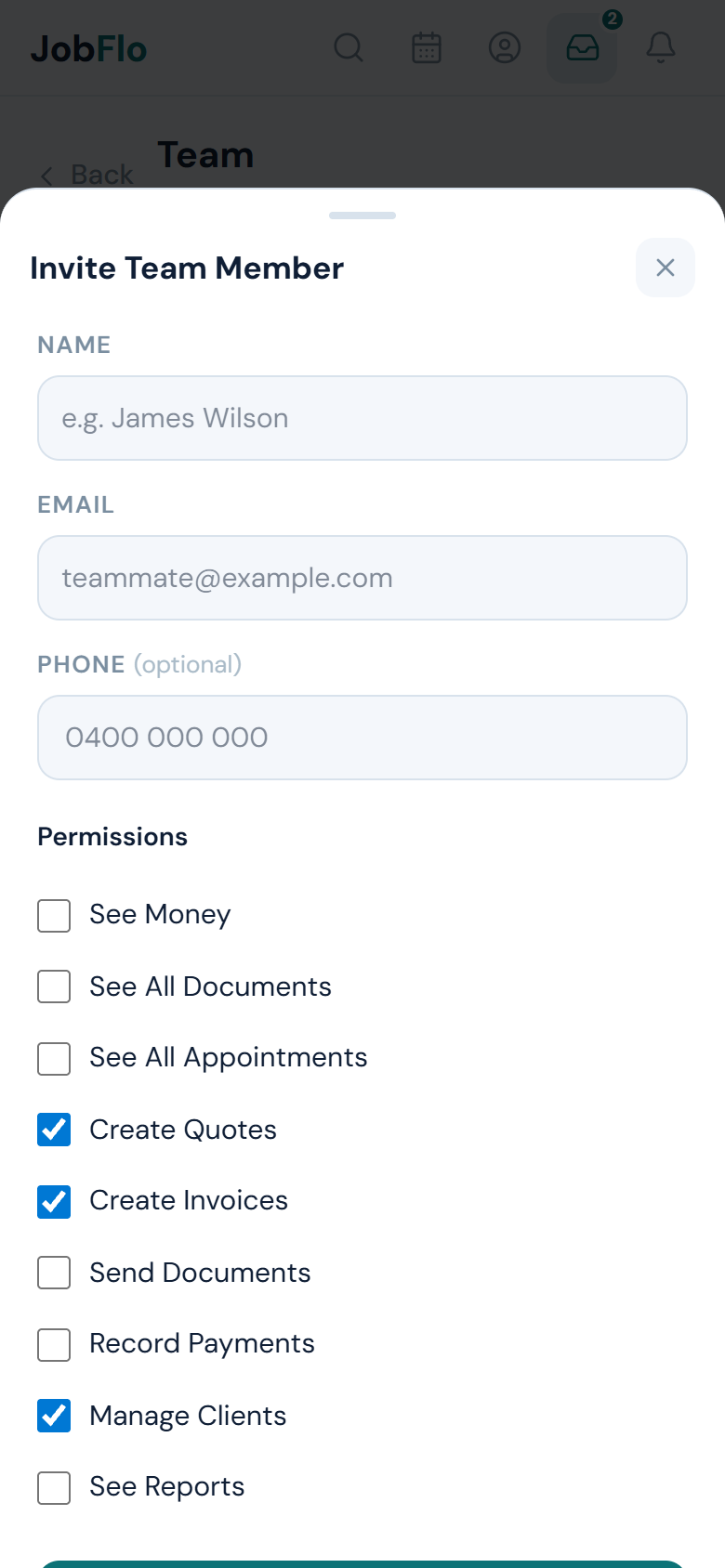
JobFlo has two roles. The account owner (shown as Admin) has full access to everything and cannot have permissions taken away. Everyone you invite is a staff member, and you choose exactly what each staff member can see and do.
Owner vs staff
- Owner (Admin) — full access, including billing, team management, defaults and integrations. There is one owner, and only the owner can manage the team.
- Staff — access is limited to the permissions you switch on. By default a new staff member can create quotes and invoices and manage clients, and nothing more.
Staff permissions
- See Money — shows the Money and Track areas (time, expenses, payments).
- See Reports — lets them open the Reports dashboard.
- See All Documents — see the whole business’s quotes and invoices, not only their own.
- See All Appointments — see the whole business’s calendar, not only their own.
- Create Quotes — raise new quotes.
- Create Invoices — raise new invoices.
- Send Documents — email quotes and invoices to clients.
- Record Payments — mark invoices as paid and log payments.
- Manage Clients — add and edit client records.
- Open More → Team and tap the staff member to expand their card.
- Tap Edit details.
- Tick or untick permissions, then tap Save. Changes apply the next time they load the app.
Money and Reports are the two most sensitive areas. Leave See Money and See Reports off for staff who only need to quote and invoice.
Was this article helpful?
Related articles
Still stuck? Contact JobFlo