Help Centre / Getting Started / Set up your business profile
Set up your business profile
Add the logo, ABN and details that appear on your quotes and invoices.
Your business profile is what your clients see on every quote and invoice — your logo, business name, ABN and contact details. It is worth filling in properly before you send your first document.
- Tap More in the bottom nav, then My Business (also under your Profile).
- Tap the logo box to upload your logo — a horizontal logo under 1 MB (PNG or SVG) works best.
- Fill in your Business Name, Phone, Business email, ABN and address.
- Turn GST Registered on or off. If it is on, choose your BAS reporting period (monthly, quarterly or annually).
- Tap Save Settings.
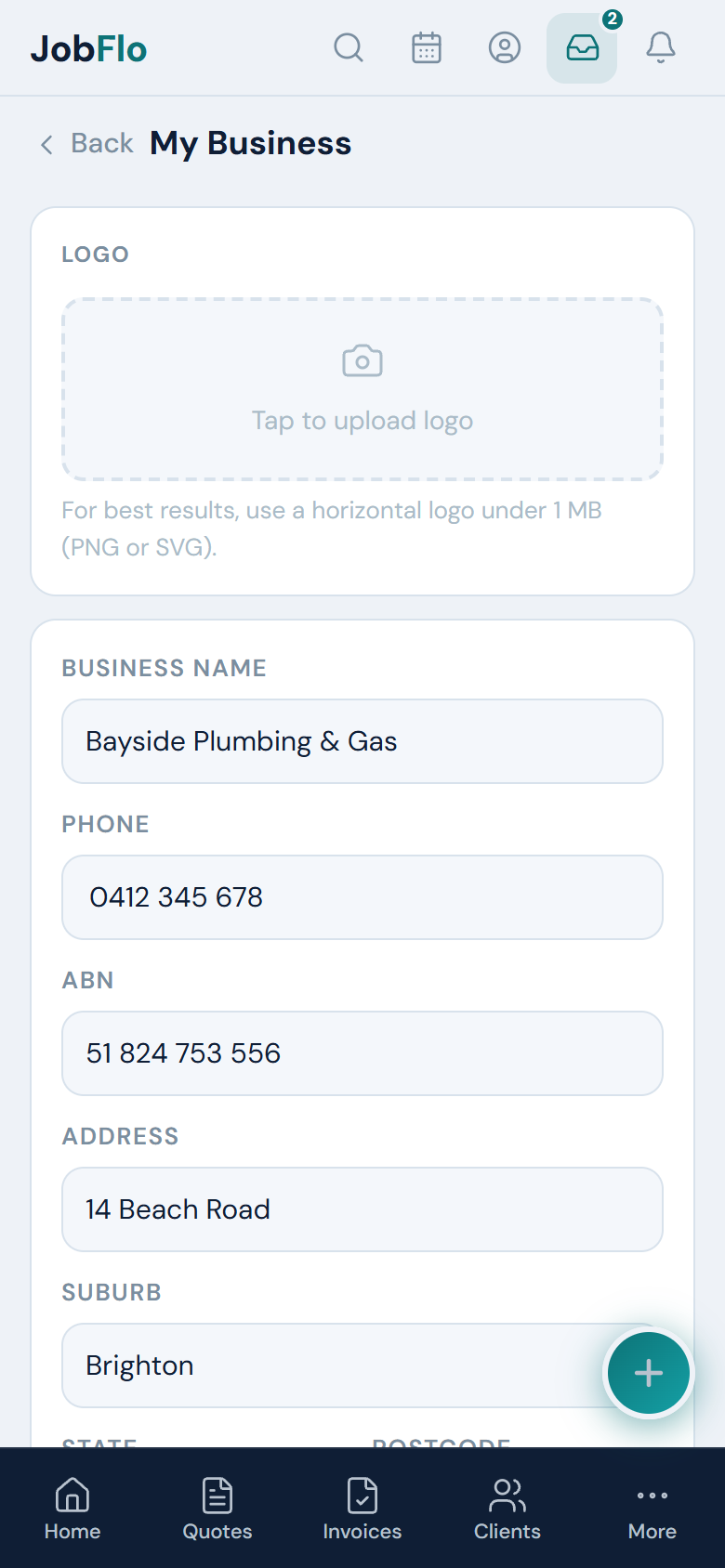
Your address state sets your timezone, which is used to time reminders and quote-expiry notifications for your local morning.
Your business email is not the same as the email you sign in with. The sign-in address identifies your account; the business email is what clients see and reply to on a quote or invoice. Plenty of tradies sign up with a personal address but want replies going to something like accounts@yourbusiness.com.au — this is where you set that.
If you signed up with Apple and chose Hide My Email, Apple gives us a private @privaterelay.appleid.com address. Client replies to that are blocked by Apple, so set a real business email here — otherwise a client hitting reply on your quote will never reach you.
Your bank details are set separately, under More → Client payment options — they appear on invoices so clients can pay you by transfer. Your default hourly rate is set once during onboarding and can be overridden on individual time entries as you log them.
Was this article helpful?
Related articles
Still stuck? Contact JobFlo