Help Centre / Reports & GST/BAS / Exporting to Xero, QuickBooks or MYOB
Exporting to Xero, QuickBooks or MYOB
Generate a CSV of your invoices formatted for import into your accounting software.
If you use accounting software, JobFlo can export your invoices as a CSV file formatted for direct import into Xero, QuickBooks or MYOB — so you are not re-typing invoices at BAS time.
Accounting exports are a Business-plan feature, and only the account owner can reach them. On other plans the option does not appear in the menu.
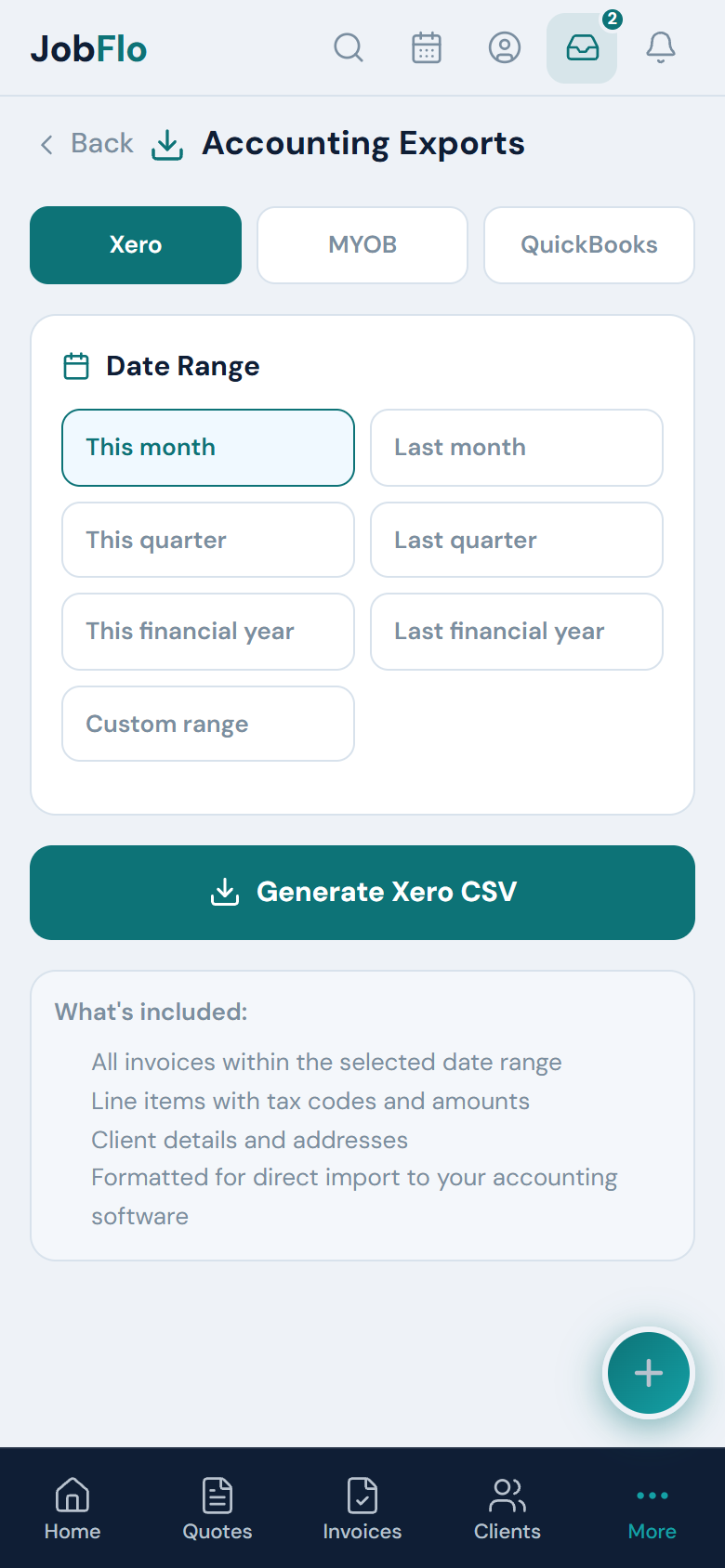
- Open More → Accounting exports (under Defaults & Integrations).
- Choose your software: Xero, MYOB or QuickBooks.
- Pick a date range — This month, This quarter, This financial year, or a custom range. Financial-year presets use the Australian 1 July–30 June year.
- Tap Generate CSV. The file downloads ready to import into your accounting software.
Each export includes every invoice in the range, its line items with amounts and tax codes, and the client’s details and address. Whether GST is applied to the tax codes follows whether your business is marked as GST registered in JobFlo.
The MYOB export requires MYOB AccountRight. MYOB Business and Essentials do not support this CSV import.
To pull the report figures themselves — the metrics behind the Reports dashboard — rather than invoices, use the Export as CSV button on the Reports screen. That report export is also a Business-plan feature.
JobFlo does not provide tax advice. Always review an export in your accounting software and confirm the figures with your accountant or BAS agent before relying on them.
Was this article helpful?
Related articles
Still stuck? Contact JobFlo