Help Centre / Getting Paid / Connect Stripe to accept card payments
Connect Stripe to accept card payments
Set up Stripe so clients can pay your invoices by card, with the money landing straight in your bank.
Connecting Stripe lets clients pay an invoice online by card. The charge runs on your own Stripe account, so the money is yours from the moment it clears — JobFlo does not sit in the middle of it and takes no cut of the payment.
Card payments are part of the Pro and Business plans. If you are on Starter you will need to move up a plan before the option appears.
- Go to More → Client payment options.
- Find the "Stripe — Card Payments" section and tap Connect Stripe.
- You are handed to Stripe to set up your account — enter your business and personal details and the bank account you want to be paid into.
- When Stripe is done it sends you back to JobFlo, and your status updates automatically.
- Once it shows "Connected", clients can pay your invoices by card.
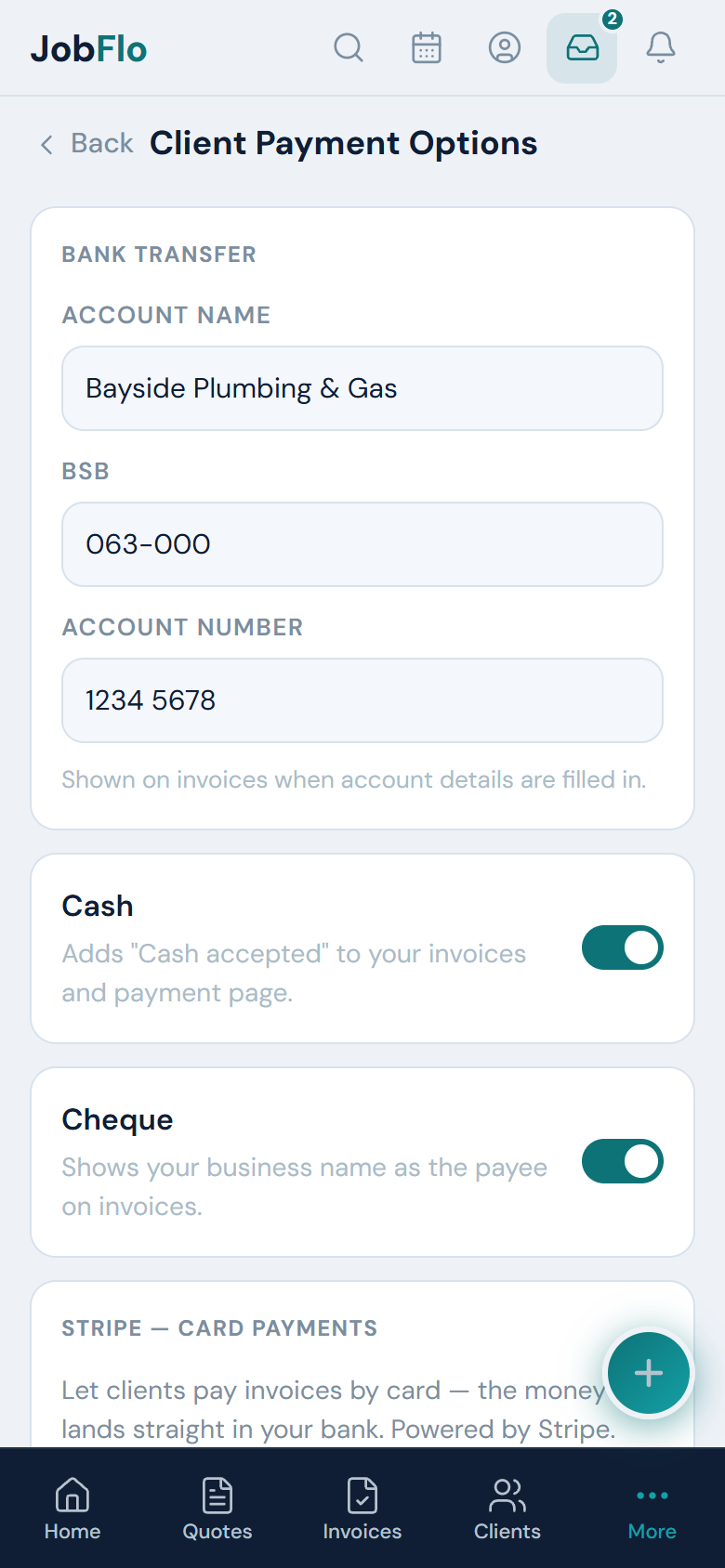
If Stripe needs more information, the section shows "Setup incomplete" with a Finish Stripe setup button. Tap it to pick up where you left off. You can tap Refresh any time to re-check your status with Stripe.
Verification is handled entirely by Stripe and can take anywhere from a few minutes to a day or so. The card option only shows on your invoices once Stripe has enabled charges on your account.
Was this article helpful?
Related articles
Still stuck? Contact JobFlo